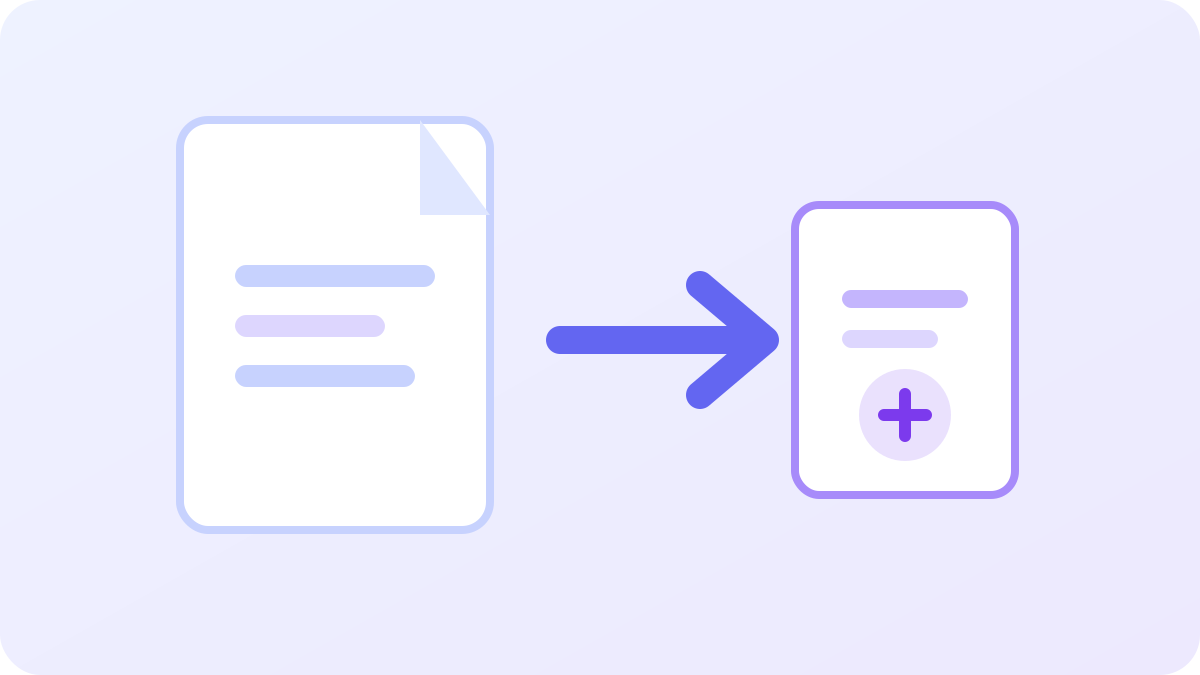
What PDF compression actually does
PDF compression is not one single technique. A PDF can contain text, vector graphics, embedded fonts, photographs, scanned pages, forms, annotations and metadata. A compressor may optimize one or several of those elements depending on how the file was created and how aggressively you choose to reduce it.
That is why two files with the same number of pages can behave very differently. A ten-page document made mostly of selectable text may already be compact, while a ten-page scan can be huge because each page is stored as a high-resolution image. Good compression starts by understanding what is making the file large rather than blindly applying the strongest setting.
Why PDF files become too large
The most common reason is oversized image data. Phone scans, presentation exports and design files are often saved at a quality level intended for print, even when the final document will only be viewed on a screen. This can add megabytes without creating a visible benefit for normal viewing.
Other contributors include duplicated fonts, unnecessary embedded objects, hidden layers, thumbnails, metadata and pages that were repeatedly edited or exported. In some cases, simply removing unused pages or splitting a document can be more effective than recompressing every page.
- High-resolution photographs or scans
- Print-quality exports used for screen viewing
- Large embedded fonts
- Unnecessary metadata and thumbnails
- Repeated editing and export cycles
- Extra pages that are no longer needed
Lossless vs lossy PDF compression
Lossless optimization tries to reduce overhead without deliberately discarding visible information. It may clean document structures, compress streams more efficiently or remove redundant data. This is the preferred first step when you want to preserve text, links, forms and image quality as closely as possible.
Lossy compression goes further by reducing image resolution or recompressing image content. It can create much larger savings, especially for scanned files, but there is a real trade-off. Fine text inside scans, signatures, screenshots and diagrams can become softer if the settings are too aggressive.
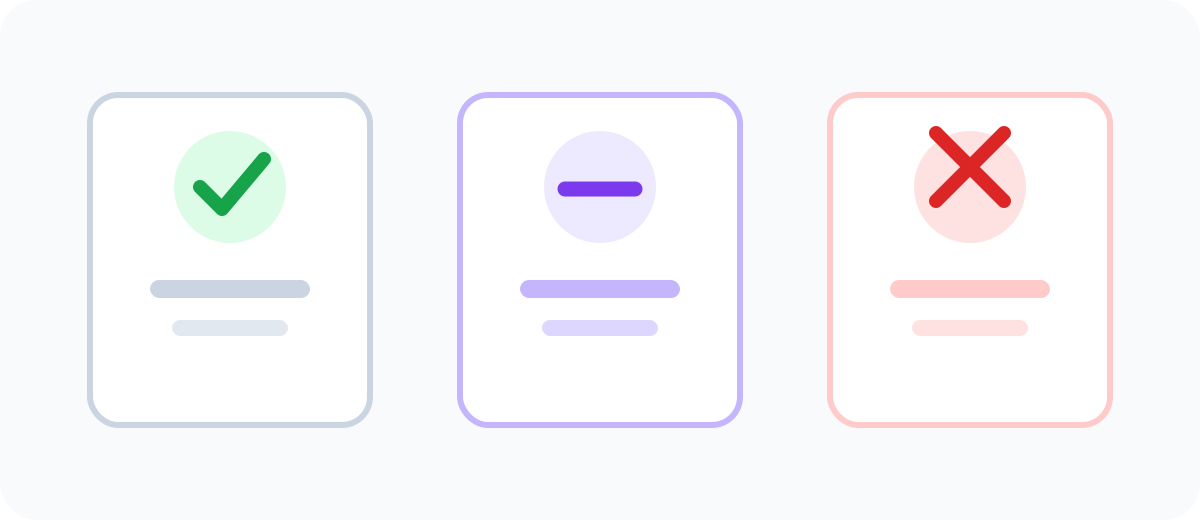
Choose compression based on the destination
The right setting depends on what happens after compression. A PDF being emailed to a colleague has different requirements from a document being professionally printed. A form uploaded to a government portal may have a strict size limit, while an archival copy should prioritize fidelity over minimum size.
Start with the lightest level that meets the practical requirement. If the file must be under 10 MB, do not chase 1 MB unless there is a reason. Every extra reduction can increase the chance of visible degradation.
- Email: prioritize readability and a manageable attachment size
- Website download: balance quality with faster loading
- Upload portal: target the stated size limit
- Printing: preserve higher image quality
- Archive: keep an original high-quality master
A reliable step-by-step workflow
First, keep the original file. Compression should create a new copy, not replace your only source. Next, try a safe or conservative mode and compare the before-and-after file size. Open the result and inspect a few representative pages rather than trusting the number alone.
If the file is still too large, move to a balanced mode and repeat the inspection. Check the smallest text, charts, signatures and photographs. Only use a strong mode when the size requirement is more important than perfect fidelity, and always keep the original until the final file has been verified.
- Keep the original PDF
- Compress a copy
- Compare the file sizes
- Inspect detailed pages at 100% zoom
- Check text selection if that matters
- Use stronger settings only when needed
What to do when compression barely changes the file
A small reduction does not necessarily mean the tool failed. The PDF may already be optimized, or most of its content may be data that cannot be reduced further without visible loss. Text-heavy PDFs often compress efficiently at creation time, leaving little waste to remove later.
In that situation, look at document structure. Remove pages you do not need, split a large file into smaller parts, or reduce oversized source images before rebuilding the document. For scanned PDFs, a stronger raster-based mode may reduce size dramatically, but it can turn selectable text into page images depending on the implementation.
Privacy and browser-side compression
PDFs can contain contracts, invoices, school records, personal identifiers and internal business information. If a compression tool can process the document locally in the browser, the source file does not need to be uploaded to an application server for the transformation itself. That can reduce unnecessary exposure.
Local processing does not mean every website makes zero network requests, and it is not a substitute for organizational security policies. For highly sensitive documents, use approved software and procedures. For ordinary files, browser-side processing is a useful privacy feature when it is clearly disclosed and technically appropriate.
Best practices for consistently smaller PDFs
The best time to control PDF size is often before export. Resize photos to realistic dimensions, avoid inserting full camera-resolution images into office documents, and use export presets intended for screen or web delivery when high-end print quality is not required.
A good PDF workflow keeps a high-quality source and creates delivery copies for specific purposes. That way you can make a lightweight email version without sacrificing the master file you may need later.
- Resize source images before inserting them
- Use screen-quality export presets when appropriate
- Avoid repeated JPEG re-saving
- Remove unused pages
- Keep a high-quality master copy