Start with the content you actually want to encode
A QR code is only a visual representation of underlying data. Before generating one, decide exactly what the scanner should receive: a website URL, plain text, contact details or supported Wi-Fi information. The quality of the QR code cannot fix incorrect content.
For website links, use the final destination URL rather than a temporary preview address. For printed material, remember that the code may remain in circulation for months or years, so avoid linking to pages that are likely to disappear.
Creating a QR code for a website
Use the complete HTTPS URL and verify that the page works well on mobile. Most QR scans happen on phones, so sending users to a desktop-only page creates a poor experience even if the code scans perfectly.
Keep the destination simple and trustworthy. Extremely long tracking URLs can create denser QR patterns, although QR generation libraries can still encode them within capacity limits. If you use redirects, maintain them reliably.
Using QR codes on business cards and printed material
Business cards, posters and packaging are physical objects, so print size matters. A QR code that looks sharp on a large monitor may be too small once printed. Leave clear whitespace around the code and avoid placing it over photos or textures.
Tell the user what the code does. A short label such as 'View portfolio' or 'Save contact' improves confidence and makes the interaction less mysterious.
QR codes for Wi-Fi access
Supported QR formats can encode network information so a compatible phone can offer to join a Wi-Fi network. This is convenient for guests, cafés and offices, but the code should be treated like another way of sharing network credentials.
Do not place a private network password on unrestricted public material unless that is intentional. For guest access, use a separate guest network where possible.
Contrast, quiet zone and error tolerance
Reliable scanning depends on visual clarity. Dark modules on a light background are the safest combination. Decorative colors can work, but low contrast makes scanning less reliable, especially under poor lighting or with older phone cameras.
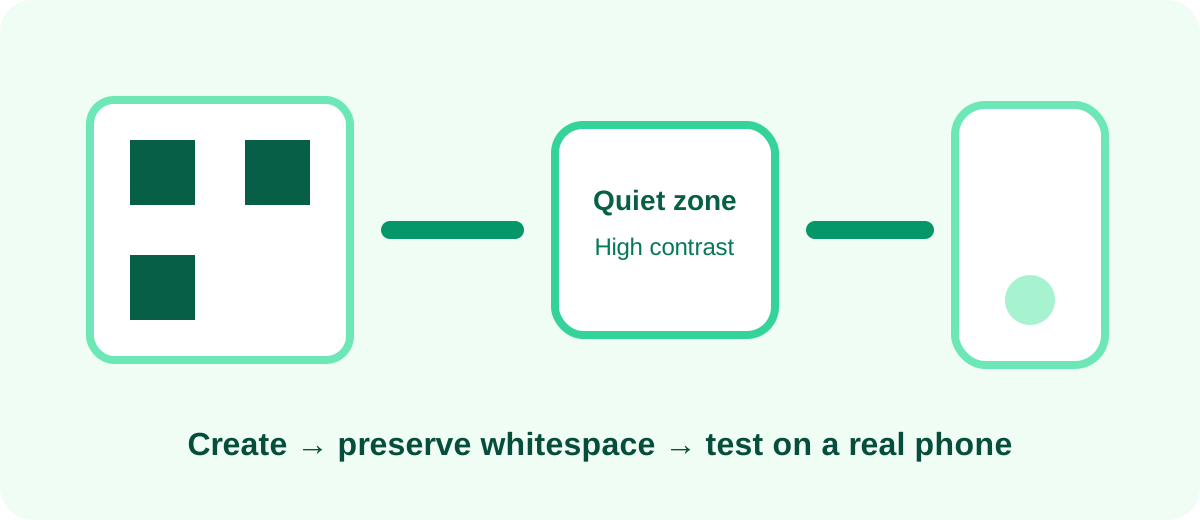
The blank margin around the QR pattern is called the quiet zone. It helps scanners distinguish the code from surrounding graphics. Cropping this area too tightly is a common cause of failures.
- Use strong contrast
- Keep the quiet zone
- Avoid covering finder patterns
- Export at sufficient resolution
- Do not distort the square shape
How large should a printed QR code be?
There is no universal physical size because scanning distance and code density matter. A small business-card code can work when scanned from close range, while signage intended to be scanned from several meters away needs to be much larger.
Always test the final printed size rather than only the digital preview. If the content is complex and the pattern becomes dense, increase the physical size.
Test with more than one device
Before printing hundreds of copies, test the QR code with several phones and camera apps. Verify both scanning reliability and the decoded content. A code that scans to the wrong URL is technically functional but practically useless.
Also test after the code has been placed into the final design. Resizing, compression and print production can affect edge sharpness and whitespace.
Security and trust when publishing QR codes
Users cannot read the destination by looking at the pattern, so clear context matters. Avoid placing QR codes where stickers can easily be replaced without detection when the action involves payments or authentication.
For normal marketing and information use, a visible domain near the code can help users understand where they are being sent. Keep the destination secure with HTTPS and maintain the page over time.