What merging PDF files actually does
Merging PDFs means taking pages from two or more separate PDF documents and creating one new PDF in a chosen order. The content of the source files is not supposed to change simply because the pages are combined. A good merge workflow preserves page dimensions, text, images and document order while producing one convenient file for sharing or archiving.
This sounds simple, but mistakes usually happen before the merge rather than during it. Files may be added in the wrong sequence, duplicate pages may be included, one source document may be rotated incorrectly, or a large scan may make the finished document unnecessarily heavy. Planning the order first saves time later.
When combining PDFs is useful
PDF merging is common in everyday work because many processes create documents separately even though the recipient expects one final file. A job application might require a CV, certificates and references in one upload. A business proposal may include a cover page, quotation and supporting documents. Students often need to combine assignment pages, research notes or scanned forms.
The same technique is useful for invoices, contracts, travel records, portfolios and administrative submissions. The goal is usually convenience: one attachment, one download and one document to review.
- Job applications and portfolios
- Invoices and monthly reports
- Scanned forms and supporting evidence
- Coursework and assignments
- Contracts and appendices
- Travel or visa document packages
Prepare the files before you merge them
Before combining anything, open each source PDF and verify that it is the correct version. Rename files so the sequence is obvious, for example 01-cover.pdf, 02-report.pdf and 03-appendix.pdf. This simple step reduces the chance of accidental ordering errors when several files have similar names.
Also check orientation and page size. A landscape spreadsheet inserted between portrait pages is not necessarily a problem, but a page that is sideways will remain sideways after a normal merge. If needed, rotate or organize pages before producing the final document.
A reliable step-by-step merge workflow
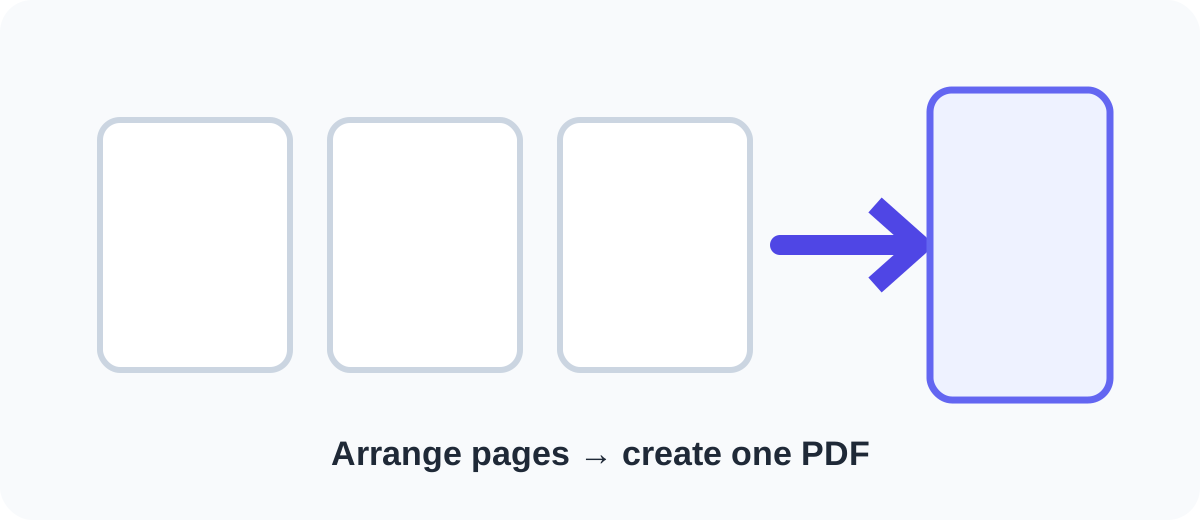
Start by selecting the source files in the order you want them to appear. Review the list before processing. If the tool supports reordering, move files until the sequence matches the final document. Then create the merged PDF and open the result immediately.
Do not assume success only because a download appeared. Scroll through the first page of every source section, check the final page, and confirm that no pages are missing or repeated. For documents that will be submitted to an institution, verify the file size and filename requirements before uploading.
- Keep original files unchanged
- Choose the correct order
- Merge into a new file
- Open the result
- Check transitions between source documents
- Confirm total page count
- Rename the final file clearly
What happens to quality when PDFs are merged
A straightforward page-copy merge normally does not need to recompress every image. The pages can often be copied into the new document while preserving their existing content. That means merging itself should not automatically make photographs blurrier or text less readable.
However, the final file can become very large because it contains the combined data of all source files. If size becomes a problem, merge first and then compress a copy. This order makes it easier to preserve source files and evaluate the compression result separately.
Privacy considerations for online PDF merging
PDFs can contain names, signatures, financial details, addresses and other personal or business information. Some online merge services upload files to a remote server because their processing happens there. Others can combine many PDFs directly in the browser using client-side libraries.
Browser-side processing can reduce unnecessary file transfer when the implementation truly performs the merge locally. Still, users should read the site’s privacy explanation and avoid putting highly sensitive material into unapproved tools. For confidential corporate or regulated documents, follow your organization’s approved workflow.
Common problems after merging and how to fix them
If pages are out of order, use an organize-PDF tool rather than repeating the entire process. If the document is too large, compress the merged copy. If one page is sideways, rotate that page or the relevant section. If a source PDF is password protected, you may need to unlock it with the correct password before it can be processed, depending on the tool and permissions.
Another common issue is inconsistent page sizes. This is usually harmless, but it may look odd in a presentation-style document. If a consistent visual layout matters, normalize page sizes in the source documents before merging.
Best practices for professional merged PDFs
Use a descriptive filename, add bookmarks or a table of contents when the document is long, and avoid including pages that the recipient does not need. Keep the originals in case a section must be replaced later. If the final PDF is important, store both a master copy and the exact version that was submitted or sent.
A good merged PDF should feel intentional, not like a pile of documents joined together. Ordering, naming, page orientation and file size all contribute to how professional the final result appears.